Updated October 14, 2026
How to make an INMU KING dance meme with your own character
Want to make an original character perform the famous INMU KING-style dance? You need a short motion-reference clip and a single character image. This walkthrough focuses on Viggle Mix, from planning the footage to generating, checking, and downloading a short animation.
This page contains affiliate links. The only promoted creation services are Viggle, HeyGen, and ElevenLabs. We have not independently generated a test video; interface instructions come from the providers' published guides.
Three steps to a dance collage
- Prepare a character imageOne full-body image and a reference dance clip.
- Animate with ViggleSelect Add Image and Add Motion in Mix, then generate.
- Sync the music and exportMute the clip in your editor and align it to the song’s beat.
Start with one chorus clip. Allow 10–20 minutes of editing, excluding asset preparation and generation queues. Viggle Free includes a watermark. See the setup and budget →
Contents
Two source files and one Viggle account
You do not need to animate an entire music video first. Start with an 8–12-second stretch of the chorus. This is a practical trial length, not a guaranteed technical requirement of Viggle.
- Motion footage: one dancer fully visible from head to feet, without cuts. Film it yourself or use a clip you have permission to upload.
- Character image: one subject, full body, facing forward or slightly turned, hands and shoes visible. Original art or licensed photos both work as inputs.
- Viggle account: sign in through the website and open Mix. Free credits, watermark rules, model availability, and limits can change.
'INMU KING punishment' is a fan nickname for the dance-meme format, not an official choreography or an endorsed production method.
STEP 1 | Capture a clear dance reference
The reference clip is the most important input. Viggle transfers visible movement from the video; it does not reconstruct an exact choreography merely from a descriptive sentence.
Watch the YouTube video below to get familiar with the dance before preparing your own motion-reference clip for Viggle.
This embedded video is for viewing and studying the choreography. Confirm permission from the rights holder before downloading it or uploading it to an AI service. Open on YouTube ↗
- Fix your phone in portrait orientation at a distance that shows your full body. Leave enough space for the elbows when both hands go behind your head.
- Stand alone, facing forward or slightly diagonally. Prefer a simple wall, steady lighting, and clothes that make arms distinguishable from the torso.
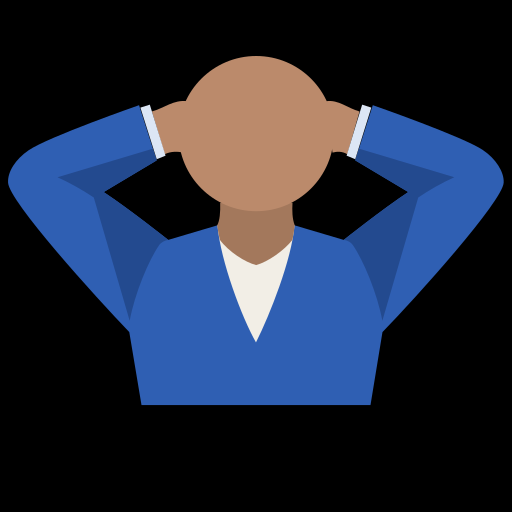
- Perform an INMU KING-inspired sequence: a stable initial pose, hands rising behind the head, then rhythmic side-to-side movement. Film roughly 8–12 seconds. This is an example shot plan, not official instruction.
- Use a single continuous shot. Avoid zooms, sudden turns, passers-by, fast camera movement, and edits within the same reference clip.
- Play the result and check that both hands, feet, and the head are visible throughout. Reshoot any section where the arms disappear behind another object.
STEP 2 | Choose or prepare a suitable character image
A full-body dance works best with a source image that also shows the full character. A cropped portrait asks the model to invent missing legs and shoes, which can reduce stability.
- Center exactly one character; keep the face and outline unobstructed.
- Show both shoes, elbows, and hands; use a relaxed starting pose.
- Keep the background quiet and lighting even, with enough space around the subject.
- Use a fictional character you created, or verify the consent and rights required for any real person or licensed character.
Copyable image-composition prompt (example)
Use the prompt below to specify the composition when creating or generating a character image. It is not a prompt to paste into Viggle Mix.
An original fictional adult character, standing upright, full body visible from head to shoes, single subject centered in the frame, facing the camera, both arms relaxed beside the body, both hands clearly visible, both feet fully inside the image, clean simple studio background, consistent outfit and facial features, soft even lighting, high-detail character image, vertical 9:16 composition, leave generous space around the elbows and shoes.Things to avoid if your image workflow supports a negative prompt
cropped feet, cropped hands, hidden elbows, extra fingers, extra limbs, two people, side profile only, motion blur, busy background, props covering the body, text, watermarkZoom in before uploading: are the feet completely visible, the hands distinct, and the face recognizable? Missing pixels cannot be guaranteed to appear correctly in the generated video.
STEP 3 | Generate the dance in Viggle Mix
Viggle's published flow is: sign in → Mix in the sidebar → Add Motion → Add Image → MIX → download. Names and layout may change.
- Open Viggle and sign in through an available option, such as email, Google, or Apple. Choose Mix from the left sidebar.
- Use the Add Motion card. Drag in your own dance recording or select click to upload. Library is for built-in motion examples; use your own clip for the particular dance.
- Use the Add Image card to upload the character still. Confirm that its orientation is reasonably similar to the person in the driving clip.
- If model selection appears, consider the V4.5 Pro model mentioned in Viggle's guides for full-body movement. Its availability may depend on your plan.
- Check that both inputs are present, then press MIX. Try one version first rather than spending credits on multiple attempts.
- Preview hand positions, facial consistency, limbs, and timing. If the result is suitable, use the download icon on the result screen.
STEP 4 | Improve imperfect motion
Change only one variable per generation so you can tell what worked. Keep the first output as a baseline.
- Face changes mid-clip: choose a clearer source face, avoiding heavy shadows, large masks, or hair hiding the outline.
- Elbows melt into the head: reshoot from a slightly angled position so elbows stay distinguishable; include the transition into the hands-behind-head pose.
- Shoes float or legs deform: use a full-body reference showing the floor. Try Foot Lock if it exists for your chosen model.
- Clothing or design drifts: simplify the source character and consider Character Refine where supported.
- The choreography differs: remove cuts, camera shake, and overlapping people. Retest a shorter, cleaner continuous stretch.
These are practical troubleshooting suggestions based on the tool's documented features and good input preparation; no setting is guaranteed to fix every clip.
STEP 5 | Synchronize music — and know what is still missing
Creating a moving character and exporting a finished MP4 with the original song are separate jobs. The approved affiliate services currently confirmed do not establish a complete music-mixing workflow.
- Play the downloaded Viggle clip to see whether it has an audio track. Do not assume sound from the source clip is retained.
- If your destination platform offers a properly licensed sound library, you may be able to select an available track in its upload workflow. Confirm whether INMU KING is offered and licensed for your use.
- Line up the first strong beat of the chorus with the starting pose or the hands-behind-head movement. If the rhythm drifts badly, a cleaner reference recording may help.
- For an MP4 with the song included, import the generated dance footage and your audio into an editor, align the beat, then export. Filmora below is one editing option.
Adding the seven-day Creative Assets trial starts a ¥1,999/month renewal after the trial in the Japan offer. Basic cutting and music alignment do not require that add-on; distinguish it from the editor license at checkout.
For no-payment export, use your own assets and basic editing at 1080p. Avoid Pro assets and paid AI features; remove any end-card logo clip. Viggle’s source watermark remains. CapCut
Check the dance, then align the music
The embedded YouTube video is provided to watch the moves, not as permission to download it and upload it into an AI tool. Use footage you have created or are authorized to reuse as Viggle's motion reference.
Matching the finished dance video to the chorus requires a separate editing step. Align the audio on a timeline, check for duplicate audio and verify the original track's usage terms.
A generic 'Yajū dance' label may refer to the separate track YAJU&U. Verify the source song before using a reference clip.
Original audio and instrumental guide → · How YAJU&U differs from INMU KING →
Common issues and answers
Where is Mix?
Look in Viggle's sidebar after signing in. Labels and navigation can change; the feature pairs a character still with motion footage.
Where do I paste the prompt?
You generally do not paste a dance prompt in Mix. Add Motion supplies the movement. The English prompt above describes how to compose your input image.
Can I use a headshot?
It may animate, but full-body source images are the more predictable starting point for a dance with visible legs.
Why is there no music?
Listen to the export first; audio retention is not guaranteed. Song mixing and appropriate music rights are separate concerns.
What will this cost?
Trial credits, generation length, model access, and watermark rules change. Check the current interface before starting a render.
Make an audio edit for the clip
To change name calls, verse lyrics, chorus lines or shouts, separate backing and vocals and replace the chosen region. Follow the audio guide below.
INMU KING audio edits: replace words in the original song →
Create original voice with ElevenLabs (affiliate link) ↗ · Try lip sync with HeyGen (affiliate link) ↗
Keep your first attempt simple: one character, one image, and 8–12 seconds of self-recorded motion. Inspect the hands-behind-head section and only reshoot what needs improvement.
What does “INMU KING punishment” mean in October 2026?
The phrase describes AI fan edits that make a person or character dance to the song's chorus. It is a meme nickname, not a legal punishment. Early versions often grouped a person involved in a controversy with others, while by October the format had expanded into generic dance edits featuring streamers, celebrities and fictional characters.
Being shown in one of these edits does not establish wrongdoing or participation by the depicted person. Ask permission before using real people's likenesses, label synthesized content clearly and avoid presenting unverified compilation totals as a definitive number of participants.
See the timeline of this meme →
Related reading and sources
The official guides below explain how to use Viggle.