How to make INMU KING collage video
INMU KING audio edits: replace words in the original song →
Advertising uses affiliates.
INMU KING's dance collabs are created by putting a full-body image of a person and a dance video into Viggle, then matching the resulting video to the song using Filmora / CapCut. The close-up of the singing face is by HeyGen, and the additional lines are by ElevenLabs. You don't have to use them all. If it's just dancing, I can use Viggle and editing software.
Start with just 8–15 seconds of the chorus. Use your own photo, an original character or material you have permission to use. The following workflow is based on the tools' official guides.
Three steps to a dance collage
- Prepare a character imageOne full-body image and a reference dance clip.
- Animate with ViggleSelect Add Image and Add Motion in Mix, then generate.
- Sync the music and exportMute the clip in your editor and align it to the song’s beat.
Start with one chorus clip. Allow 10–20 minutes of editing, excluding asset preparation and generation queues. Viggle Free includes a watermark. See the setup and budget →
Table of contents
Materials to prepare first
The required images are different for full-body dance and lip-syncing for just the face. If you want to create both, please prepare one full-body image and one close-up of the face of the same character.
- Image of a person:For dance use, images should be covered from head to toe, with arms and legs not hidden behind other objects. For lip-syncing, the image should have the face close to the front and the mouth clearly visible.
- Movement reference videos:Videos of your own choreography or dance materials that you have permission to use. First, choose a short video that fits one person on the screen.
- Song/Audio:Available sound sources. If you want to use INMU KING for the music function of the post destination, you can also decide the timing when editing and specify the music when posting. Please check the distribution status and terms of use at the posting destination.
First decide on 9:16 for vertical videos and 16:9 for horizontal videos. As an example of production, if the first 2 seconds are a close-up of the face, the next 8 seconds are a dance, and the last 2 seconds are a pose, it will become one flow in 12 seconds.
Move your dance with Viggle
Viggle's Mix is a function that transfers the movement of a reference video to a human image. The choreography will be provided in a dance video rather than text.
- After logging in, open Mix.
- Upload a reference video with Add Motion. For practice, you can use the movements from the Library, but if you want to match INMU KING's choreography, choose materials that include those movements.
- Add a full-body image to Add Image. Using the same image in different cuts makes it easier to match the appearance of clothing and people.
- Check the selected material and usage limit and generate it with MIX.
- In the generated result, check where the hands are behind the head, where the arms cross the face, and where the feet are. Save usable cuts from the download icon.
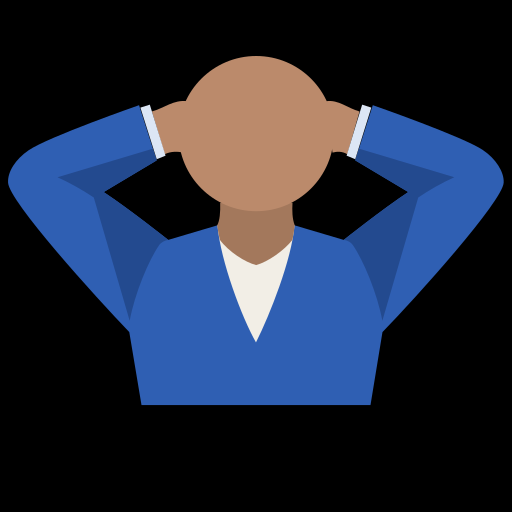
First, try a short cut that includes a choreography where you put your hands behind your head. If you have a reference video where the face or body is cut off in the middle, please replace it with another material and compare. Check the background as well as the person, as the appearance of the original background may change.
Operation names are based on Viggle official Mix instructions. The Official Image Preparation Guide may also be helpful when it comes to image brightness, near-frontal orientation, and minimal occlusion.
Make face close-ups sing with HeyGen
For a singing face close-up separate from the full-body dance, use HeyGen's Photo to Video. It pairs a photo with audio to generate mouth movements and expressions.
- Open the corresponding function from Photo to Video in Home or All Apps in Tools.
- Upload an image of your face close to the front. Even though the character is the same as the one for the full body dance, here I choose an image where the mouth can be seen.
- Upload your audio file. For dialogue, you can enter text and select a voice. If you want to accompany a song, prepare usable audio of the part you want to sing.
- Check the required settings and consumption credits and generate them with Generate.
- The timing of the mouth opening is compared with the audio, and the completed video is sent to the editing software.
HeyGen's Avatar IV Official Guide explains how to input images and audio to Photo to Video, and examples of using songs as audio. It will be easier to prepare the materials if you separate the process of accurately transferring the whole body choreography into Viggle, and the process of showing the singing face into HeyGen.
If fast lyrics or parts with strong accompaniment don't suit you, try using shorter phrases. Only the part where the lip sync matches will be shown as a close-up of the face, and the rest will be connected through dancing. Rather than endlessly recreating a single broken cut, try editing with the material you can use.
Add lines with ElevenLabs
If you want to include a short line like "The king has arrived" at the beginning, use ElevenLabs's Text to Speech to make your own line into audio.
- Open Text to Speech and enter your dialogue. Start with just one sentence.
- Choose a voice and check the Japanese pronunciation and atmosphere.
- Generate speech with Generate speech and listen to the pronunciation and pauses. If a number or proper noun is not being read as intended, convert it to its pronunciation and compare.
- Save MP3, WAV, etc. from generation results and History downloads.
- If you want to lip-sync, put it into HeyGen's audio input, and if you want to use it as a narration, put it into the audio track of editing software.
For notes on operation and reading, refer to ElevenLabs official Text to Speech guide. Generating it consumes usage quota, so please check with a short line before submitting a long manuscript.
Match music and footage with Filmora or CapCut
Edit the song and footage in Filmora (desktop)
Adding the seven-day Creative Assets trial starts a ¥1,999/month renewal after the trial in the Japan offer. Basic cutting and music alignment do not require that add-on; distinguish it from the editor license at checkout.
Put your Viggle dance, HeyGen lip-sync clip and chosen audio in one folder. We will call them dance.mp4, lip.mp4 and song.wav. Start with a short chorus section, not the entire coronation.
- Open New Project.Choose 9:16 for a vertical short or 16:9 for landscape. Use Import in the media area to add dance.mp4, lip.mp4 and song.wav. Keep the source files in place while editing.
- Drag dance.mp4 to a video track and song.wav to an audio track below it.At the start of the song section you want, select the audio clip, right-click and choose Split. Split again at its end, delete the unwanted audio on either side, then move the retained section to zero.
- Mute the video’s audio to avoid doubling the song.Right-click dance.mp4 and choose Mute. Do the same for lip.mp4 when using a separate audio track. Play the song and check that you hear only one copy.
- Keep the song fixed and move the video.Pick a clear movement, such as both hands reaching behind the head, and a beat to match. Zoom into the timeline and drag the whole video clip: right if the movement is early, left if late. Replay the surrounding seconds to check.
- Put lip.mp4 on a video track above the dance only where you want the close-up.The upper clip covers the dance. Split and trim it to the chosen lyric section, align it with the same audio used in HeyGen and check the mouth opening. This works for name chants, verses or other lines.
- Check the middle and end, not just the opening.A constant offset calls for moving the video. If the drift grows, do not stretch one short clip across the whole song: align shorter sections against the matching lyrics and audio. Check for black gaps at either end.
- Save the project, then use Export to create a local MP4.For a 1080p output use 1920×1080 landscape or 1080×1920 portrait, with a frame rate matching your source. Choose a name and destination, export, then open the MP4 and check picture and sound through the end. A project file alone is not the upload video.
CapCut
For no-payment export, use your own assets and basic editing at 1080p. Avoid Pro assets and paid AI features; remove any end-card logo clip. Viggle’s source watermark remains. CapCut
Import your material into CapCut Desktop. Put the video and song on separate tracks, then align the video to the song. The same workflow applies in other editors.
- Create a new project and import dance videos, face close-ups, and audio from Import.
- Place the video on the timeline and place the audio of the song below it. If the original video contains unnecessary sound, reduce the volume of the video.
- Decide on one place to match, such as the beginning of the chorus. Enlarge the audio waveform and move the dance start position to the place where the beat occurs.
- Cut the unnecessary parts from the front and back. When using a lip-synced video, make sure that the audio used for generation and the audio on the editing side are aligned at the same starting position so that they do not deviate.
- If you add subtitles, place them in a position that does not obscure the face or hand movements. Check if it can be read even when displayed small on a smartphone.
- Export from Export. For the first check, use 1080p/MP4 as a guide, and select the frame rate according to the source material.
For loading materials, arranging tracks, and exporting, refer to CapCut official procedure for combining video and audio.
A place to review when things go wrong
- Change your face: Compare short cuts by using only one image of the person and avoiding reference videos that hide faces.
- Broken hands or arms: Check before and after the hands go behind the head, not just the instant itself. Replace a bad shot with another pose or a face close-up.
- Dance and song drift out of sync: Move the clip's starting point first. If that does not fix it, adjust the video's speed slightly. Handle lip-sync shots separately.
- Lip sync is out of sync:Check whether the audio passed to the generation and the audio used for editing are the same, and whether the silence at the beginning is removed on one side.
- Hands are cut off in vertical videos:Don't cut out just before exporting, be aware of the vertical angle of view from the beginning when selecting the material.
When you retry, change only one thing: the image, the reference clip or the edit. Changing all three at once hides the cause of the problem.
Confirmation before exporting
Please choose materials that you are comfortable using for images of people, reference videos, and sound sources. When using a real person, confirm the person's consent and avoid presenting in a way that could be misinterpreted as the person's words or appearance. Use your own recordings or available audio, and do not copy someone else's voice without permission. When posting, please include an explanation that makes it clear that it is AI synthesis, and check the rules of the posting destination and the terms of use of the sound source.
Once you save the video, play it on your smartphone until the end. Check for sudden changes in volume, cut-off subtitles, black screens at the end, or distorted images before posting. The generation frame and output conditions for paid plans change, so please check each service's screen on the day you start production.
Official procedures/related articles
Each step above has a link to the official document that confirms the operation. The confirmation date is October 11, 2026.